What Is FTP? (And How to Use It)
What Is FTP? (And How to Use It)
What Is FTP?
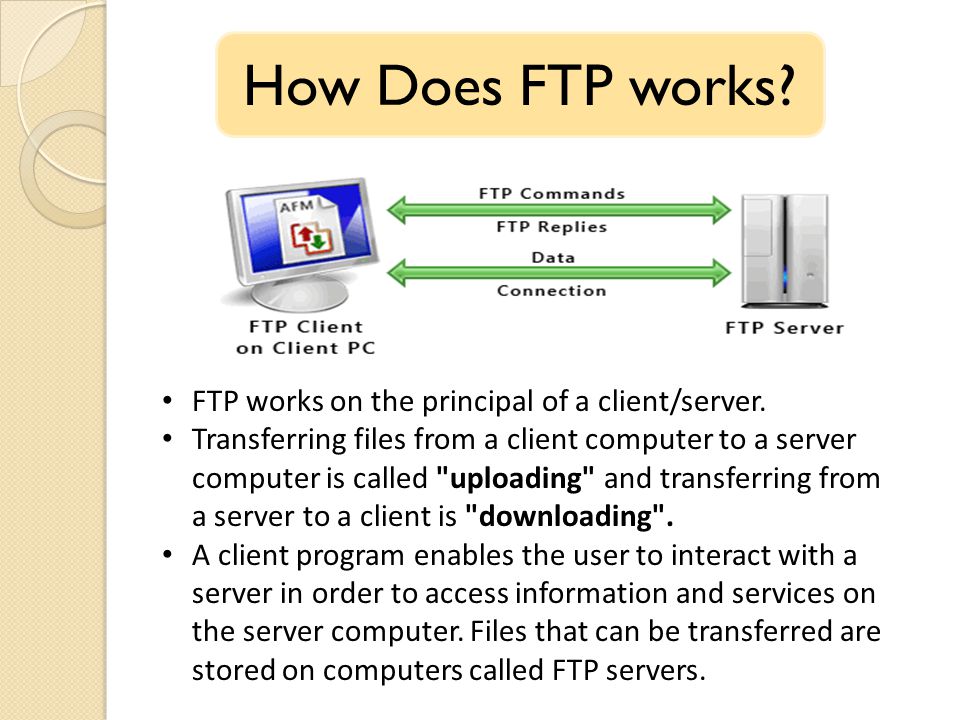
FTP (File Transfer Protocol) is a standard network protocol used to transfer files between a client and a server over a computer network. It’s commonly used for uploading files to a web server or downloading files from one. FTP operates on a client-server model, allowing users to connect to a server and manage files remotely.
Key Features of FTP
- File Upload and Download: Easily transfer files to and from servers.
- File Management: Allows users to create, delete, rename, and manage directories and files on the server.
- Access Control: Supports user authentication to restrict access to files and directories.
What Is FTP? (And How to Use It)
How to Use FTP
Here’s a step-by-step guide on how to use FTP:
1. Choose an FTP Client
You’ll need an FTP client to connect to the server. Popular options include:
- FileZilla (Windows, macOS, Linux)
- Cyberduck (macOS, Windows)
- WinSCP (Windows)
- Transmit (macOS)
What Is FTP? (And How to Use It)
2. Gather Your FTP Credentials
You will need the following information to connect to the FTP server:
- FTP Server Address: This is typically the domain name or IP address of your server.
- Username: Your FTP account username.
- Password: The password associated with your FTP account.
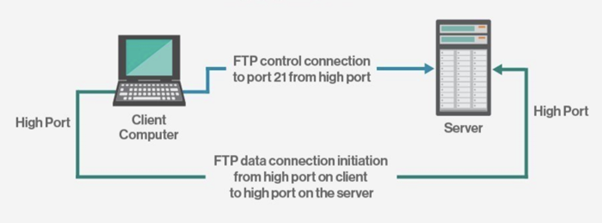
- Port: The default port for FTP is 21, but some servers may use SFTP (port 22) or other ports.
3. Connect to the FTP Server
- Open your FTP client.
- Enter the FTP server address, username, password, and port.
- Select the connection type:
- Use FTP for standard connections.
- Use SFTP (Secure FTP) for encrypted connections.
- Click “Connect” or the equivalent button in your client.
4. Transfer Files
Once connected, you’ll typically see two panels:
- The left panel shows your local files.
- The right panel displays the server files.
To transfer files:
- Upload Files: Drag and drop files from the left panel (local) to the right panel (server).
- Download Files: Drag files from the right panel (server) to the left panel (local).
5. Manage Files
You can manage files directly from your FTP client:
- Create Directories: Right-click in the server panel and select the option to create a new folder.
- Delete Files/Folders: Right-click and choose the delete option.
- Rename Files: Right-click on a file and select rename.
6. Disconnect Safely
When you’re finished, always disconnect from the server to avoid leaving an open session.
Tips for Using FTP
- Use Secure Connections: Always prefer SFTP or FTPS for secure file transfers, especially when dealing with sensitive data.
- Backup Your Files: Regularly back up your website files before making significant changes.
- Monitor File Permissions: Be mindful of file permissions to protect your files from unauthorized access.
- Keep Your Client Updated: Ensure your FTP client is updated to the latest version for security and functionality.
Conclusion
FTP is a powerful tool for managing files on a server. By understanding how to use it effectively, you can streamline your file transfers and maintain your website or server with ease. Whether you’re uploading new content, downloading backups, or managing existing files, mastering FTP will greatly enhance your workflow.