What to Do if You’re Unable to Log into RDP Due to Multiple Failed Login Attempts
What to Do if You’re Unable to Login to RDP Due to Multiple Failed Login Attempts
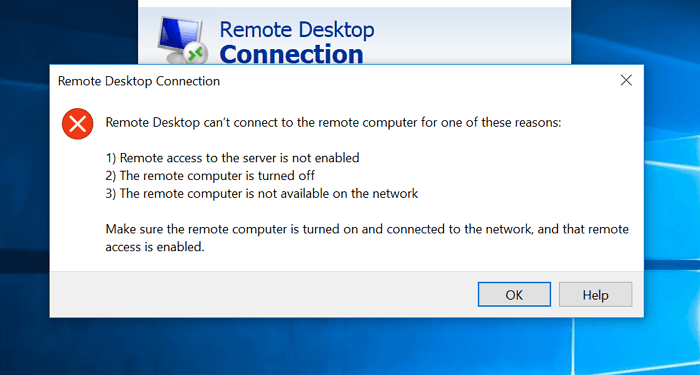
Unable to Login to RDP – Remote Desktop Protocol (RDP) is an essential tool for accessing servers and computers remotely, but sometimes, users may encounter issues when trying to log in, especially if multiple failed login attempts have triggered security mechanisms. If you’ve found yourself unable to log into your RDP session due to multiple failed login attempts, don’t worry. In this blog, we’ll walk you through the causes of this issue and the steps to resolve it.
Understanding the Issue
Unable to Login to RDP – When you try to log into a remote system using RDP, the server or device you’re attempting to access typically has a set of security protocols in place to protect against unauthorized access. One of the most common security measures is account lockout, which temporarily blocks further login attempts after a predefined number of incorrect logins.
This is meant to prevent brute force attacks, where an attacker tries multiple combinations of usernames and passwords in an effort to gain access. While this is an important security feature, it can be frustrating if you’re locked out due to multiple failed attempts.
Common Reasons for RDP Login Failures
- Incorrect Credentials: The most common reason for failed RDP login attempts is simply entering the wrong username or password. Double-check your credentials, including the case sensitivity of your password and username.
- Account Lockout Policy: Many organizations enforce account lockout policies that temporarily disable access after a set number of failed login attempts. This is to protect the server from malicious attacks but can lock out legitimate users who made a mistake.
- IP Address Blocking: If there are too many failed attempts from a specific IP address, the server might block that IP to prevent further attempts. This is another layer of security meant to thwart brute force attacks.
- Network Issues: Sometimes, network issues or firewalls may interfere with the connection, making it seem like your login attempt is failing, even if your credentials are correct.
- RDP Settings: Incorrect configurations in the RDP settings could also lead to login issues, such as a restriction on the number of simultaneous connections or issues with licensing.
How to Fix the RDP Login Issue
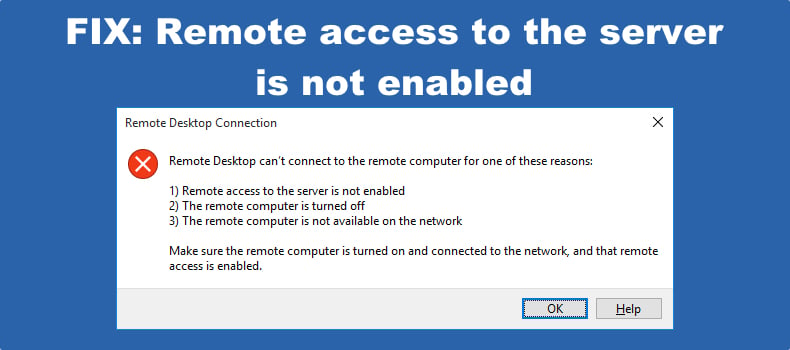
1. Wait for Account Lockout to Expire
If your RDP account has been locked due to multiple failed attempts, the simplest solution is to wait for the lockout period to end. The duration of the lockout depends on the settings configured by your system administrator. It could range from a few minutes to several hours. After this time, you should be able to try logging in again.
2. Reset the Account Lockout Counter
If waiting isn’t a viable option, you may need to reset the lockout counter. This can be done by a system administrator through the Active Directory or Local Security Policy on the server. Here’s how an admin can reset the lockout counter on a Windows Server:
- Open Active Directory Users and Computers.
- Right-click on the locked-out user account and select Properties.
- Navigate to the Account tab.
- Click on Unlock Account if the option is available.
Alternatively, the system administrator can use PowerShell or command-line tools to reset the lockout policy or unlock the account.
3. Check for IP Blockage
If you suspect that your IP address has been blocked due to too many failed login attempts, check the server’s firewall or security logs. Look for any entries indicating that your IP address has been blocked and either whitelist it or unblock it manually.
4. Review RDP Security Settings
If you’re still experiencing login issues, review the RDP security settings on the server. Ensure that the maximum number of login attempts is not too low and that no other restrictions are in place that could prevent you from logging in. You can adjust these settings in the Group Policy editor:
- Open the Group Policy Management Console (GPMC).
- Navigate to Computer Configuration > Administrative Templates > Windows Components > Remote Desktop Services > Remote Desktop Session Host > Security.
- Modify the settings to allow more login attempts before locking the account.
5. Verify Credentials
Ensure that you are using the correct username and password. If necessary, reset your password to ensure you have the right credentials for logging in.
- On the login screen, double-check that you are using the correct domain, username, and password format.
- If you have recently changed your password, make sure the new one is being used.
If you’ve forgotten your password, a system administrator can reset it for you.
6. Check for Network Issues
RDP requires a stable network connection. Ensure that there are no network issues or misconfigured firewalls on your local machine or the server that could be preventing the connection. You can try pinging the server or testing the RDP connection from another device or network to rule out local issues.
7. Use Remote Management Tools
In some cases, if RDP is completely blocked, you may need to use alternative management tools like Remote Server Administration Tools (RSAT), PowerShell Remoting, or VNC to access the system and resolve the issue.
Preventing Future RDP Lockouts
To avoid facing this issue in the future, consider implementing the following measures:
- Enable Multi-Factor Authentication (MFA): MFA adds an extra layer of security and can prevent unauthorized access even if login attempts are made with incorrect credentials.
- Increase the Lockout Threshold: Adjust the number of failed login attempts allowed before the account is locked. This gives you more flexibility and reduces the chances of being locked out accidentally.

Unable to Login to RDP - Use Strong Passwords: Make sure your password is strong and difficult to guess. A combination of uppercase and lowercase letters, numbers, and special characters is highly recommended.
- Monitor Login Attempts: Set up alerts or logging to track failed login attempts, so you can detect and address potential issues quickly.
Conclusion
Unable to Login to RDP – Being locked out of your RDP session due to multiple failed login attempts can be frustrating, but it’s usually a temporary issue that can be resolved with a few simple steps. By understanding the cause of the issue and following the troubleshooting methods outlined above, you should be able to regain access and avoid future login problems.
Remember, if you continue to have trouble, don’t hesitate to contact your system administrator or IT support team for assistance. They can help identify the root cause and ensure that your access to the system is restored as quickly as possible.