WordPress migration – Complete Guide 2024
WordPress migration – Complete Guide 2024
WordPress migration – Complete Guide 2024 – Migrating your WordPress website manually from one host to another can feel overwhelming, especially if you’re doing it for the first time. But with the right steps and some technical know-how, you can successfully move your WordPress site yourself.
This article will provide you with step-by-step instructions on how you can migrate your website manually.
Migrating a WordPress site can be a complex process, but with proper planning and execution, you can ensure a smooth transition. Here’s a comprehensive guide to migrating a WordPress site in 2024:
1. Pre-Migration Preparation:
Backup Your Website:
- Use a WordPress backup plugin or your web host’s backup feature to create a full backup of your website files and database.
- Store the backup files securely in a location separate from your website server.

Choose a New Hosting Provider (If Needed):
- Research and select a new hosting provider that meets your requirements for performance, reliability, and support.
Select a Migration Method:
- There are several migration methods available, including manual migration, using plugins, or hiring a professional service. Choose the method that best fits your expertise and requirements.
2. Set Up Your New Environment:
Set Up a Staging Site (Recommended):
- Create a staging environment on your new hosting server to test the migration process without affecting your live site.
Install WordPress on the New Server:
- Install a fresh copy of WordPress on your new hosting server. Most hosting providers offer a one-click WordPress installation option.
3. Perform the Migration:
Manual Migration Method:
- Export your WordPress database from the current hosting server using phpMyAdmin or a similar tool.
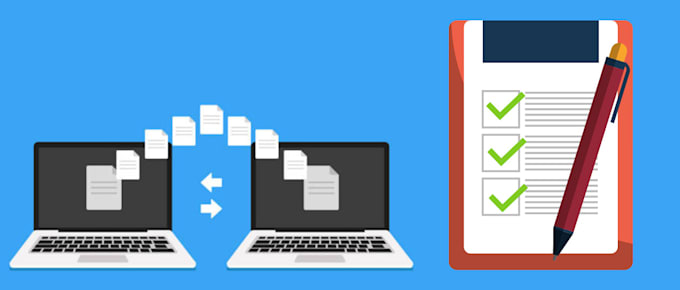
- Transfer your website files to the new hosting server using FTP or a file manager.
- Import the database backup to the new server.
- Update the WordPress configuration file (
wp-config.php) with the new database credentials if necessary.
Plugin-Based Migration Method:
- Install a WordPress migration plugin on your existing site.
- Use the plugin to create a backup of your site files and database.
- Follow the plugin’s instructions to migrate your site to the new hosting server.
4. Post-Migration Tasks:
Update DNS Settings:
- Point your domain’s DNS to the IP address of your new hosting server.
- This step may take some time to propagate, so your site may experience temporary downtime.
Test Your Website:
- Visit your website on the new server to ensure everything is working correctly.
- Test all pages, links, forms, and functionality to identify any issues that need to be addressed.
Update Configuration Settings:
- Update any configuration settings, such as permalinks, site URLs, and caching plugins, to reflect the new server environment.
Monitor Website Performance:
- Monitor your website’s performance after the migration to identify and address any performance issues or bottlenecks.
WordPress migration – Complete Guide 2024
5. Finalize the Migration:
DNS Propagation Check:
- Once DNS propagation is complete, verify that your website is accessible from the domain name.
Post-Migration Cleanup:
- Remove any temporary files or backups created during the migration process.
- Double-check all settings and configurations to ensure everything is functioning as expected.
Backup Your New Website:
- Create a new backup of your website files and database on the new server.
6. Post-Migration Support:
Provide Support for Users:
- Communicate with your website users or customers about the migration process and any changes that may affect them.

WordPress migration – Complete Guide 2024
Address Issues Promptly:
- Monitor your website closely in the days following the migration and address any issues or errors promptly.
WordPress migration – Complete Guide 2024 As is the case when moving between brick and mortar localities, a virtual move between server A and Server B is also a demanding enterprise that requires both careful planning and patience. Reasons for moving to a different server are various: a switch to another provider, setting up a backup server, or just implementing a trial round. If you want to transfer your WordPress blog, you can enlist the help of a migration tool. This step-by-step guide outlines some of the best tips and tricks to keep in mind when you carry out a WordPress server migration.
Manually migrating a WordPress account – Migrating to a new server and a new domain is a manageable task that a routine WordPress user should have no problem pulling off. Transferring all of your themes, plugins, settings, and content (including comments), is a matter of following a few basic steps. The requirements for transferring your blog are: an FTP account to an existing site, phpMyAdmin access to the database of that same website, and a webhosting package from an internet provider. After around one hour, the old data is saved and exported, new accounts and a new database are set up, and finally, the existing data is adapted and imported.